Docs / Basics
Playback & the display
Tactile transport controls under a scrolling readout, exactly the way a player should feel.
Reading the display

- 7-segment clock — elapsed time in the current track; the
smaller
/ 0:20readout is the track's total length. - 1411 KBPS · 44.1 KHZ — the track's bitrate and sample rate.
- STEREO — channel layout badge.
- x1.00 — current playback speed (lights up when not 1×).
- Track name — scrolls marquee-style when it doesn't fit.
Transport
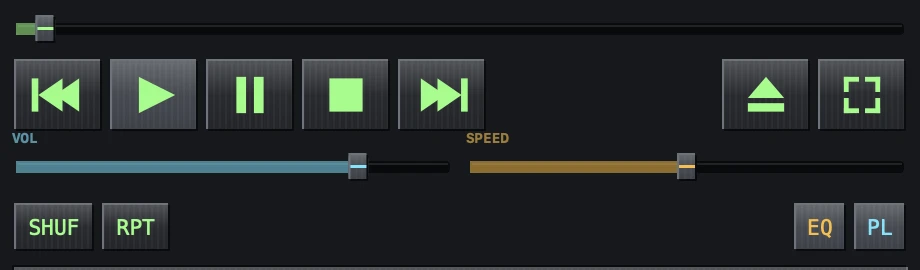
- ⏮ ▶ ⏸ ⏹ ⏭ — previous, play, pause, stop, next. Pause holds the position; stop returns to the start.
- Seek bar — drag the knob anywhere in the track. The readout follows your drag and playback jumps when you let go.
- ⏏ — open files (⌘O); ⛶ — fullscreen visualizer (⌘F).
Volume and speed
- VOL — the player's own volume, independent of system volume.
- SPEED — playback rate from 0.5× to 2×. The current rate shows on the display. Great for audiobooks and long sets.
All of it is on the keyboard and in the menu bar as well: Playback holds ⌘P play/pause, ⌘. stop, and ⌘← / ⌘→ for previous and next. The first row says what it will do next — Play or Pause — rather than making you guess which one the key is about to mean.
Shuffle and repeat
- SHUF — random order over the playlist.
- RPT — cycles off → repeat all → repeat one. The menu spells the same three out as rows you can tick (Playback → Repeat), because a button that means something different each time you press it cannot also show you which of the three you are in.
Both modes glow when active, and both are remembered across launches.
Sleep timer
Playback → Sleep Timer winds the music down on its own.
- After 15, 30, 45 or 60 minutes — the last 20 seconds fade to silence instead of cutting off, and the volume goes back where you had it once playback stops. Falling asleep to a record shouldn't end with a bang, and the next morning's first play shouldn't be silent.
- At End of Current Track — no fade. The track finishes the way it was recorded, and then the player stops.
- Off — cancel. Changing your mind part-way through a fade puts the volume back too, so you never find it left down where the fade had got to.
While a timer is armed the menu says so without your having to open the submenu: Sleep Timer (12:34) counting down, or Sleep Timer (End of Track).
Album art
The cover comes out of the track itself. WaxSong reads the artwork
stored inside the file and shows that — it does not search the folder for a
cover.jpg, does not look anything up online, and has no way to attach
a picture to a track. If a file has a cover, you see it; if it hasn't, you don't.
The place to put one on is whatever you tag your music with.
- MP3 — the ID3 picture frame, which is where nearly all of them live.
- M4A / AAC — the cover Apple's own tools write.
- FLAC — not read. FLAC keeps its picture somewhere neither reader can reach, so a FLAC file shows as though it carried no art at all, however it looks in other players. It plays perfectly; only the cover is missing.
- WAV, AIFF, CAF — these formats rarely carry a cover, and no cover is what you get.
View → Album Art decides where that cover goes, or whether it appears at all. The same list opens if you click the cover itself.
| Off | No art; the display sits flush left, as it did before there was any. |
|---|---|
| In the Display | A square at the left of the display, with the clock beside it. |
| Corner | A framed thumbnail in the visualizer's top-left corner. |
| Over Effect | A large framed square in the middle of the visualizer. |
| Behind Effect | Faded across the whole visualizer, behind the effect. |
The last three are grouped under In the Visualizer — one answer to where, three answers to how. Two switches sit below them:
- Placeholder When No Cover — tracks with no artwork get a record drawn in its place, so the layout holds still instead of shifting every time a cover is missing.
- Hide Art in Fullscreen — keep the cover in the window, but leave the fullscreen visualizer to the effect alone.